

The title bar is the long (usually blue in Windows XP or transparent in Vista, 7, or 8) bar at the top of each program. The title bar contains three familiar buttons on the right; the minimize button (little bar), the maximize or resize button (middle button) and the often used “X” button to close a program.
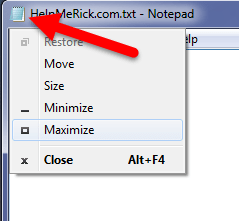 On the left side of the title bar is a small icon in the far left corner that matches that of the program. The name of the current file (or web page in a browser), and the name of the program also reside on the left side of the title bar. And even though one half to two-thirds of the bar is blank, it also has its functions.
Clicking on the little icon in the far left (once) will produce a menu that allows you to minimize, move, resize, maximize or close the window. This comes in handy when a window is shoved to one side and the right hand buttons are not visible. Double-clicking on the little icon closes the window/program.
Use the blank part of the title bar to move and position the window. This only works if the window is in the less than maximum position. Just click and drag the title bar and the whole window follows. This technique is helpful if you need to position two windows for dragging and dropping files. Also, double-clicking your title bar will automatically maximize the window.
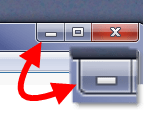 Remember to use the minimize button to ‘shrink’ the window to an icon/button on your taskbar so you can access your desktop or a window/program behind the current window. This keeps the program running and to restore it back to the original position, simple click on it one time from the task bar.
The middle button on the right side of a title bar changes between the maximize button 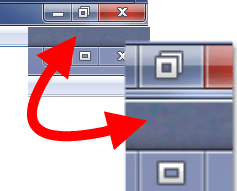 (one square) and the restore button (two overlapping squares). The maximize button will fill the entire screen with the program window. The restore button makes the program windows less than maximum.
You many not necessarily use all these techniques every day, but keep them in mind and they will come in handy from time-to-time.
Watch the short 3 minute video below for a tutorial of how these functions work.

awesome rick. thanxabunch, i’m going to go get me an sd card right now. keep up the great info.
jaybones
So Rick. Do you know of keyboard shortcuts to minimize, maximize and exit? HPL
Hello Helen. Thanks for the comment and question! To minimize all windows, Push Windows key + D or M. To restore down push Windows Key + Down Arrow (push again to minimize the window fully). Push Windows key + Up Arrow to restore up or maximize.
Would like to print this tip. What happened to the “print” button for the tips?
Thanks for the comment and question…unfortunately, in the redesign of the site, I have not found a good way to do the print friendly button…but I will keep looking and reinstitute the feature when I find a good one.
Rick,
Thanks for the reply, I will keep looking for the print button when I open the tips.
Thank you for the information regarding how to transfer pictures from my laptop to an SD card!
Comments are closed.